Tunnels to localhost
Your Mac mini's localhost, on your laptop.
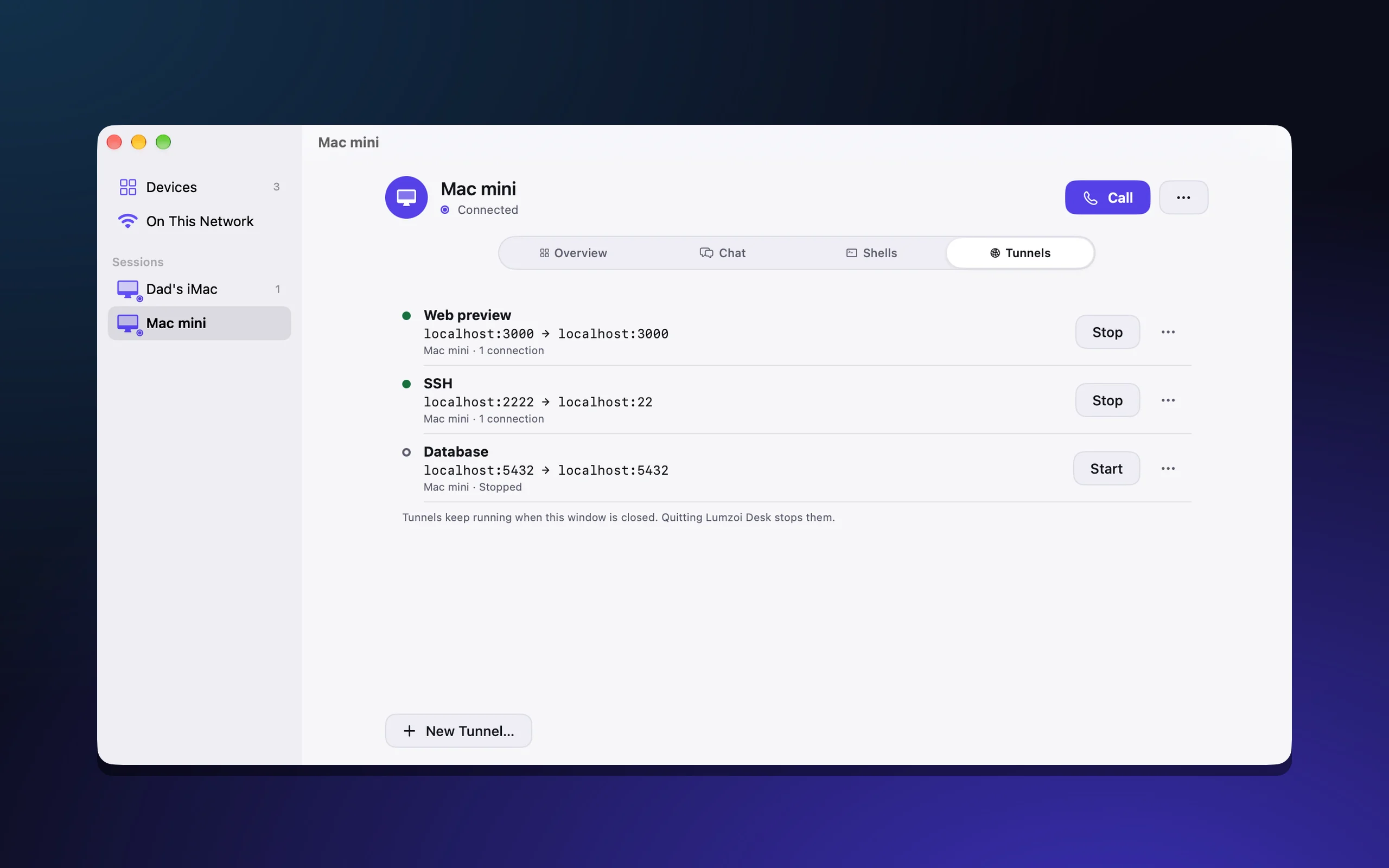
Point a tunnel at something your Mac mini serves and it answers on your MacBook at localhost. Try the site the Mac is building, connect to its database or SSH in, from anywhere.
Private, not public
Unlike a public share link, a tunnel only works for your own devices, through Lumzoi Desk's encrypted connection. Nothing on the Mac is exposed to the internet.
- No router port forwarding.
- No public URL for anyone to find.
- Encrypted end to end, even through our relay.
Anything that listens on a port
Web dev servers, notebooks, databases, SSH and admin panels all work, because a tunnel carries ordinary connections.
- Choose the local port, or let Lumzoi Desk pick one.
- Start and stop each tunnel on its own.
- Tunnels belong to the session and come back with it.
Use your own tools
Your browser, database app or SSH client on the laptop connect to localhost and reach the Mac mini. There's nothing new to learn.
- Keep the code and the heavy work on the Mac mini.
- Switch networks and the tunnel reconnects.
- Open the Mac's desktop in the same session when you need it.
Questions
Do tunnels work on iPhone and iPad?
They run while Lumzoi Desk is open. iOS pauses apps in the background, so for a browser or another app on the same device, use a Mac instead.
Is my dev server exposed to the internet?
No. Only your devices signed in to Lumzoi Desk can use a tunnel, and the connection is encrypted end to end.
Do I need to change my router's settings?
No. Lumzoi Desk connects directly when it can and uses our relay when it can't.